To connect to a server and use Developer Studio, complete the following steps:
-
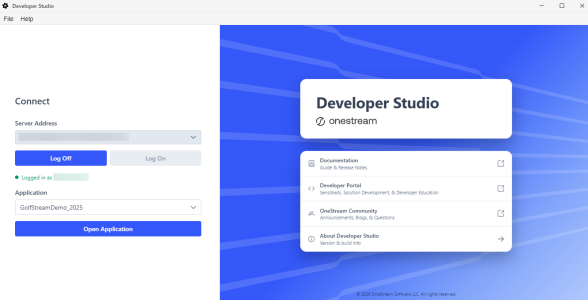
On the launch page, in the Server Address field, enter a server address. If you have previously connected to a server, you can select the server address from the drop-down menu.
NOTE: Remove OneStreamWeb from the server address. For example, if your server address is https://my.onestreamserver.com/OneStreamWeb, enter https://my.onestreamserver.com.
-
Select the Log On button and complete your OIS logon process.
-
From the Application drop-down menu, select an application and then select the Open Application button.The most recently opened application on the server is saved and automatically selected in the Application field.
On your first login, you are prompted to create a repository. See Repository Setup.
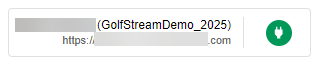
The home page will display a tile with a green Connection icon to indicate you are connected to a server and application. The tile displays the user, application, and server URL. To access the launch page, you can select the tile or go to File > Connect to a Server.
Complete these steps to switch to a different application:
-
Go to File > Connect to a Server, or select the panel containing the server address and connection icon to open the Connect dialog box.
-
From the Application drop-down menu, select a different application.
-
Select the Open Application button.
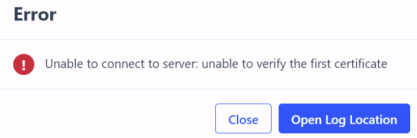
If an exception occurs on the server, you will receive an error. Select the Open Log Location button to review logging information about the exception.
NOTE: Log files are located at AppData\Local\OneStream\Developer Studio\logs.
You may need to complete custom environment configuration if you receive an error similar to the following: Unable to connect to server: unable to verify the first certificate. See Setup and Installation.